Home>Production & Technology>The Role of Plugins in Genre-Specific Production
Production & Technology
The Role of Plugins in Genre-Specific Production
Published: March 5, 2024
Explore how audio plugins shape music genres like electronic, hip-hop, and indie rock, highlighting essential tools for genre-defining sounds.
(Many of the links in this article redirect to a specific reviewed product. Your purchase of these products through affiliate links helps to generate commission for AudioLover.com, at no extra cost. Learn more)
Table of Contents
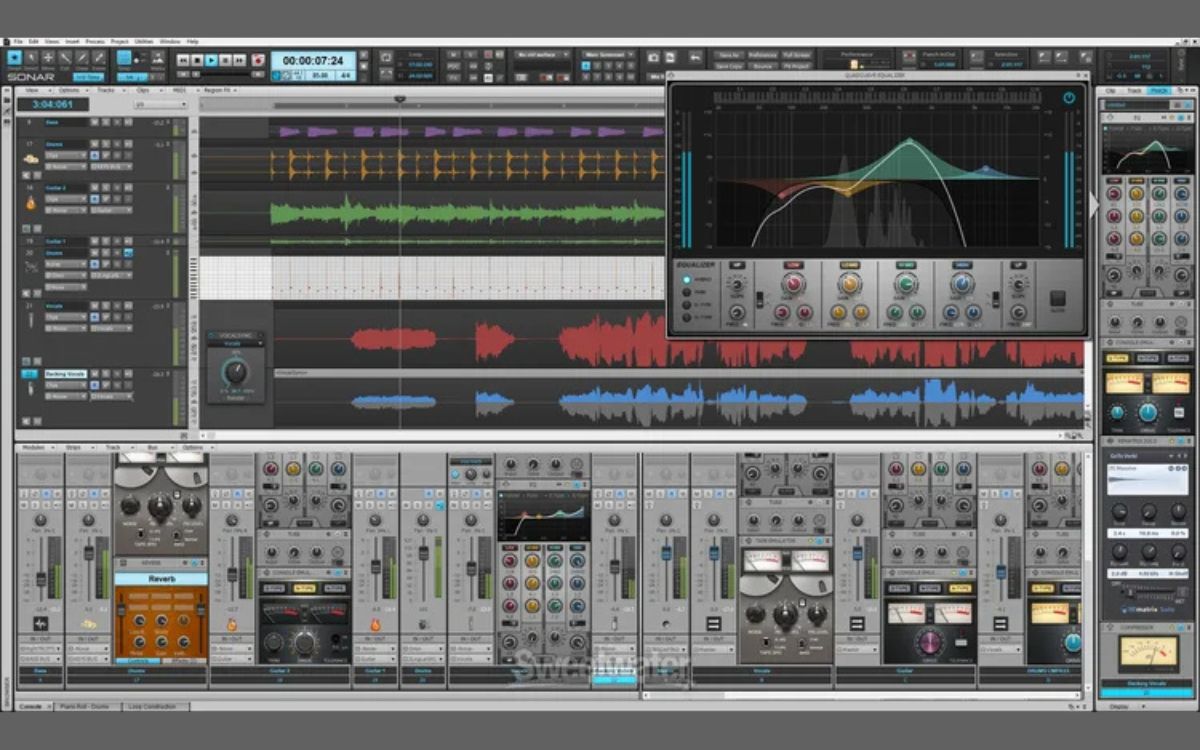
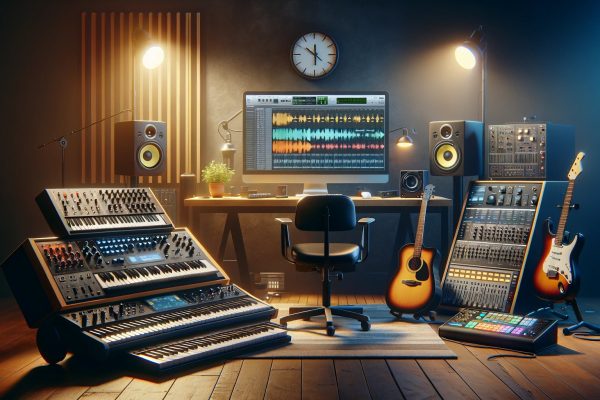
In the ever-evolving world of music production, audio plugins have become indispensable tools, enabling artists and producers to sculpt the soundscapes of their dreams. From the pulsating beats of electronic music to the soulful grooves of hip-hop and the raw energy of indie rock, plugins play a pivotal role in defining the sonic identity of these genres. In this exploration, we dive into how audio plugins shape the sound of specific music genres, highlighting essential tools that help achieve those genre-defining sounds.
Electronic Music: A Synthesis of Innovation
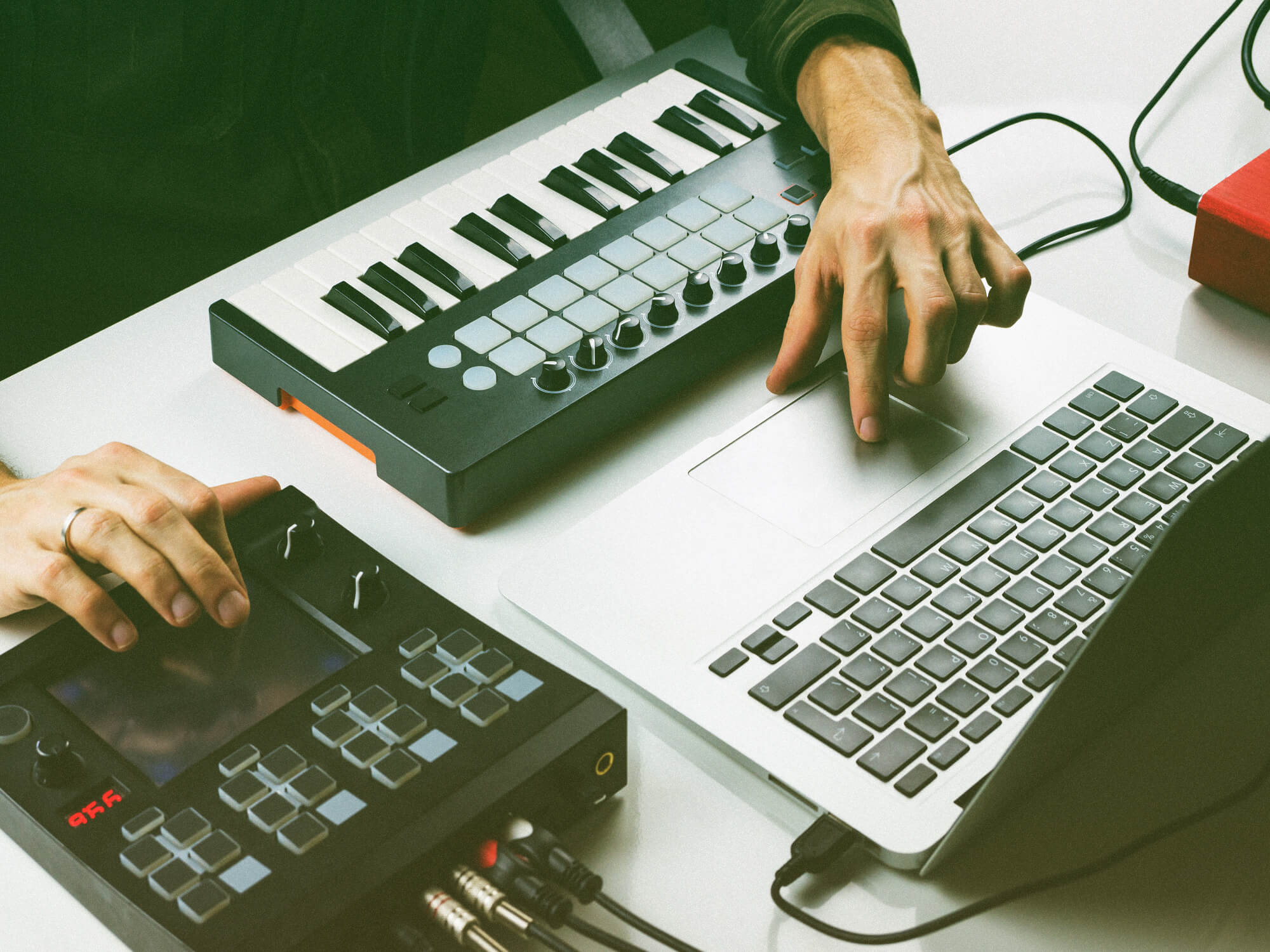
Electronic music, with its roots in innovation and experimentation, relies heavily on the creative use of synthesizers, drum machines, and effects plugins to craft its signature sounds. Here’s how to wire a digital piano synthesizer and drum machine with MIDI, creating a seamless flow of electronic impulses that translate into mesmerizing musical expressions.
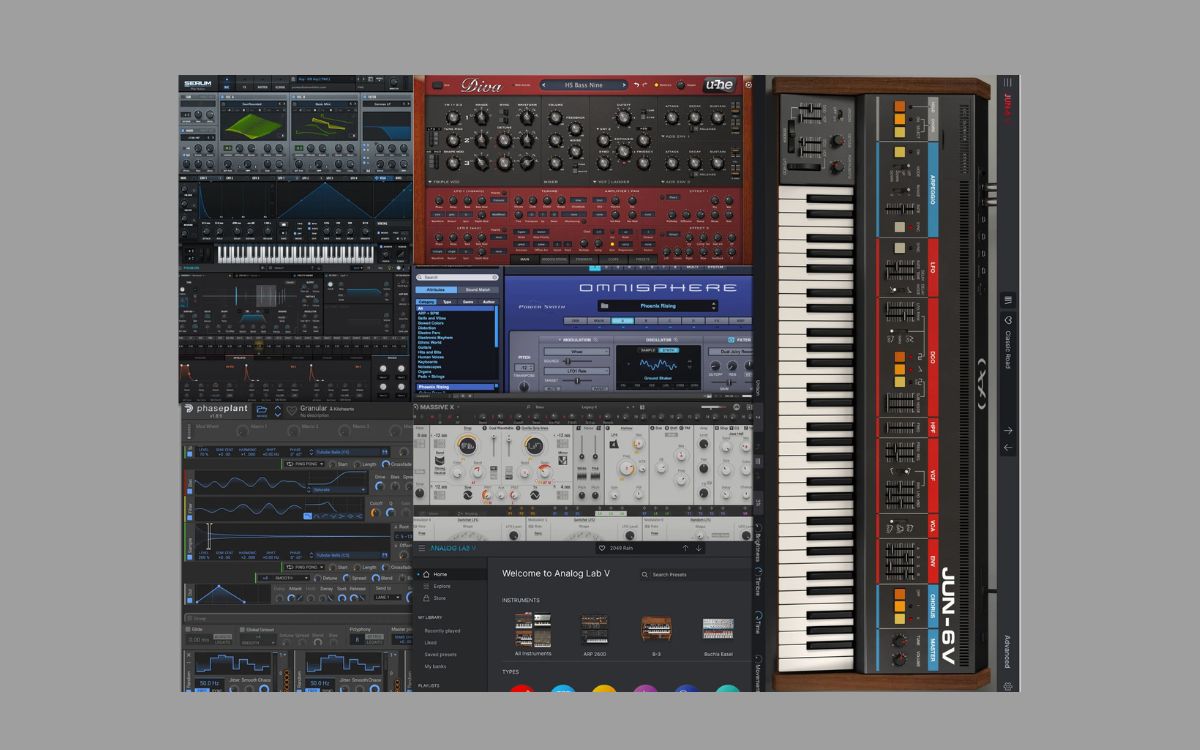
- Synthesizers: Virtual synthesizers replicate the analog warmth of classic synths and offer limitless possibilities for sound design. Plugins like Serum and Massive are staples, offering deep modulation options and high-quality presets suitable for any electronic sub-genre.
- Drum Machines: Beat-making plugins such as Battery and Superior Drummer bring the classic drum machine experience into the digital realm, allowing for intricate rhythm programming and sound shaping.
- Effects Plugins: Delays, reverbs, and modulation effects like EchoBoy and Valhalla Vintage Verb add depth and movement to electronic compositions, making them essential for creating atmospheric tracks.
Hip-Hop: The Beat of the Streets
Hip-hop has always been about storytelling, with its beats and samples forming the backbone of its narrative power. The genre owes much to the pioneers who started sampling in hip-hop, turning old records into fresh beats. Here, plugins not only replicate the gritty sound of vintage samplers but also offer new realms of creativity.
- Sampling Tools: Plugins like Serato Sample and Kontakt have revolutionized sampling, providing intuitive interfaces and powerful processing capabilities to flip samples into something entirely new.
- Beat Production: Drum machine plugins and virtual instruments tailored for hip-hop production, like XLN Audio’s Addictive Drums and Native Instruments’ Battery, offer the punchy kicks and crispy snares essential to the genre.
- Mixing and Mastering: To achieve the polished yet powerful sound characteristic of hip-hop, dynamic processing plugins such as the SSL G-Master Buss Compressor and FabFilter Pro-Q 3 for equalization are indispensable.
Indie Rock: The Authentic Touch
Indie rock thrives on authenticity and emotion, often incorporating raw, unpolished sounds that convey a sense of immediacy and intimacy. When considering what music software is best for writing rock music, DAWs like Logic Pro and Ableton Live stand out, not only for their recording capabilities but also for their suite of plugins that enhance the indie rock aesthetic.
- Guitar Amp Simulators: Plugins like AmpliTube and Guitar Rig simulate the nuanced tones of vintage amplifiers and effects pedals, essential for capturing the indie rock guitar sound.
- Analog Emulation: To imbue tracks with the warmth and character of analog recording, plugins like the Waves Abbey Road Collection recreate the sound of classic gear used in iconic rock recordings.
- Spatial Effects: Reverb and delay plugins such as ValhallaDSP’s Room and EchoBoy add depth and atmosphere, crucial for creating the spacious soundscapes often found in indie rock productions.
Crafting the Sound: A Unified Approach
Regardless of genre, the art of music production with plugins involves a blend of technical skill and creativity. Knowing how to build a synthesizer from the ground up, for instance, can provide invaluable insights into sound design, allowing producers to tailor their sounds to fit the mood and style of their tracks precisely.
In the journey from inspiration to final mix, the choice and application of plugins can make all the difference, turning a good track into a timeless anthem that resonates with listeners across the globe. Whether it’s the lush landscapes of electronic music, the rhythmic pulse of hip-hop, or the heartfelt energy of indie rock, plugins serve as the bridge between the producer’s vision and the listener’s experience.
Conclusion: Beyond the Sounds
As we’ve explored, audio plugins are much more than mere tools; they are the heart and soul of modern music production, enabling artists to express themselves in ways previously unimaginable. By understanding the role of plugins in genre-specific production, producers can push the boundaries of what’s possible, crafting sounds that define and transcend genres. In this digital age, where the only limit is one’s imagination, plugins continue to be at the forefront of musical innovation, shaping the soundtracks of our lives.
As audio technology continues to advance, the future of music production looks brighter than ever, with plugins leading the way in shaping the sounds of tomorrow. Whether you’re laying down beats, crafting melodies, or mixing and mastering your latest track, remember: the right plugin can be the key to unlocking new realms of sonic excellence.